 Open Dict


Open Dict · Help
Make Open Dict your own.
Start with a dictionary, add your preferred AI model, and carry your learning across devices.
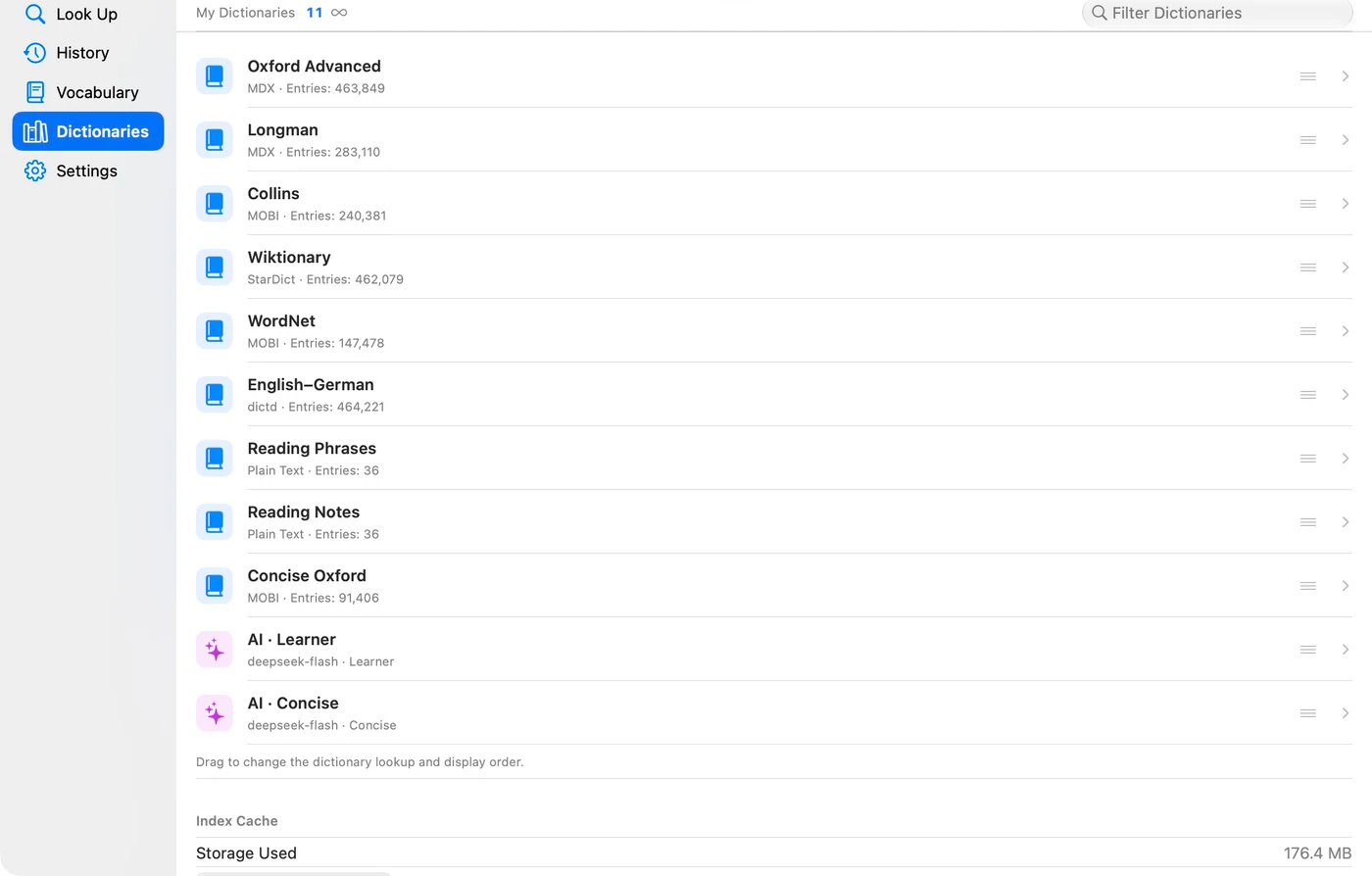
Import your first dictionary
Prepare a dictionary in MDX/MDD, MOBI, StarDict, dictd, TXT or TSV format. Open the dictionary library and import your files. Include the matching MDD resources when your dictionary uses audio or images. Search for a familiar word to explore the entry.
On iPhone or iPad, save your dictionaries to Files, then select them in Open Dict’s import picker. Import matching resource files together. Import local dictionaries separately on each device.
Set up AI explanations
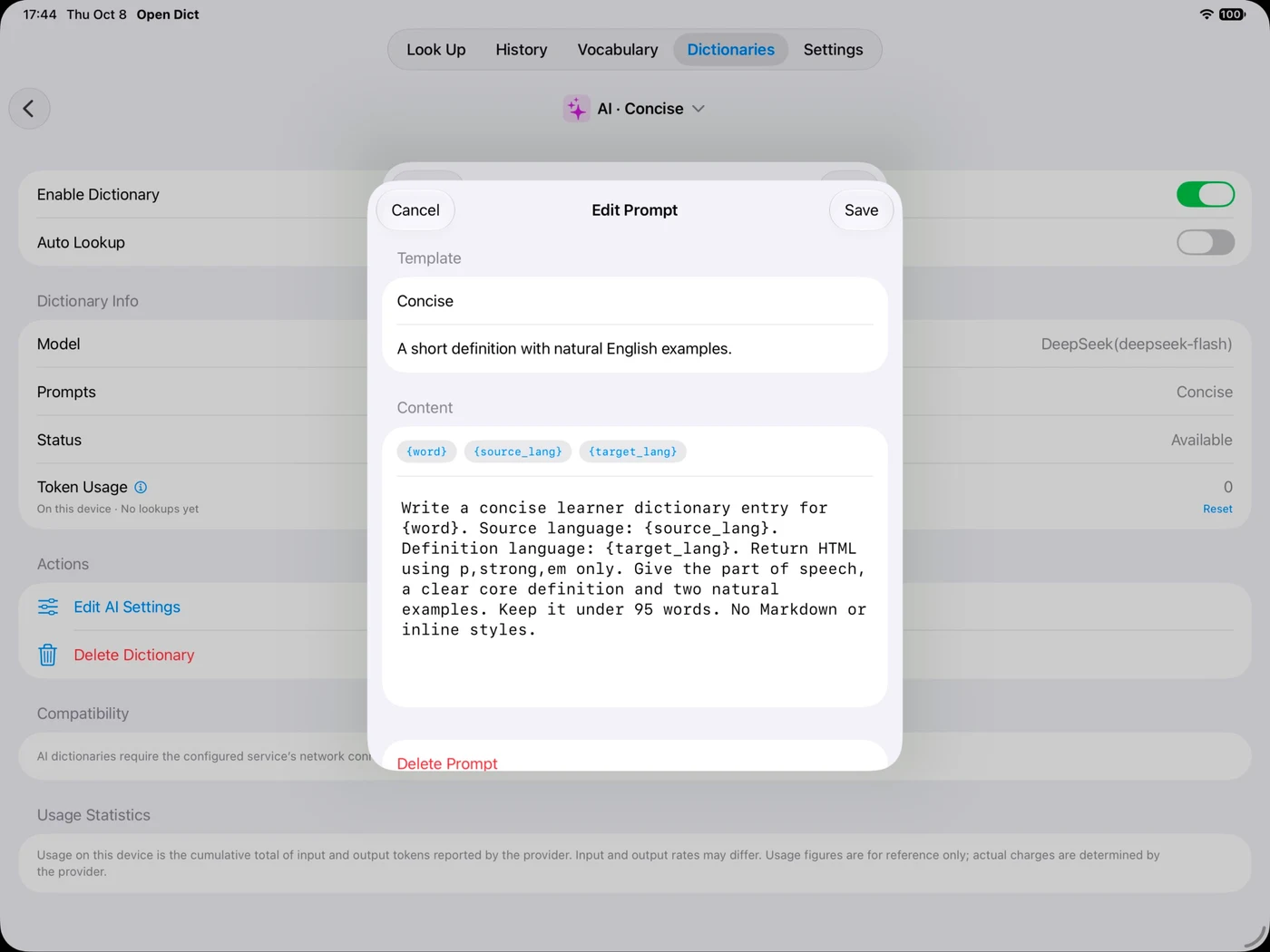
Add your own provider API key in the AI configuration. Choose a model and definition language, then start with a built-in prompt. Edit the prompt for concise meanings, learner explanations, examples or synonym comparisons.
Use the lookup settings to control automatic saving of AI definitions and manage saved definitions by dictionary.
Choose from four built-in prompts: Concise Definitions, Learner’s Dictionary, Ask, Translate, or Explain, and Compare Similar Words.
Use “Ask, Translate, or Explain” to ask a question, get a usage explanation, or translate pasted text. “Compare Similar Words” uses examples in the same context to show when to choose each word.
Save words in context
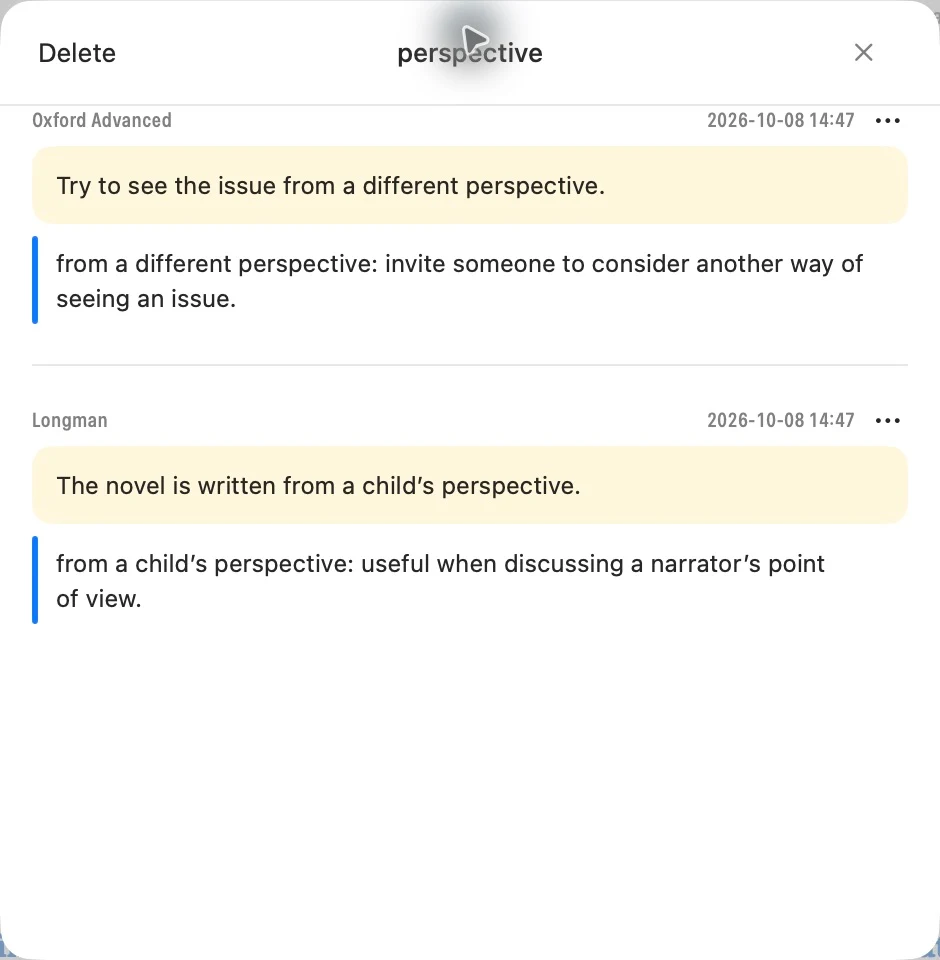
Highlight a useful sentence inside a definition and add a note. Organize words with groups and star ratings. Open a saved note to return to the original entry and review the word in context.
In Vocabulary, select several words to group, move, or export them together. A word can belong to more than one group.
Continue with iCloud
Use the same personal iCloud account on your devices and enable Open Dict’s iCloud sync. Lookup history, word groups, notes and AI configuration can follow you between Mac, iPad and iPhone.
Use your purchase on another device
Use the same Apple Account for App Store purchases. The one-time dictionary unlock is shared across Mac, iPad and iPhone. If it is not shown, use Restore Purchases in the app.
Look up text in Safari on Mac
In Safari, go to Settings → Extensions and enable Open Dict. Allow the extension on the site, select text, and click Look Up. Choose a local or AI dictionary, or pause lookup for that site. Open Quick Lookup history to rerun or delete a recent search.
Contact Open Dict
Questions, feedback or a dictionary that does not display correctly? Tell us what happened.
Need a hand? Contact us →